AI Chat helps merchants to analyze their staging-wallee.com data by asking questions in natural language, without writing SQL.
AI Chat builds on Analytics. For each question, it plans one or two SQL queries on the analytics data, runs them as regular analytics queries in the account and summarizes their results in a short answer. The data that can be analyzed is described in the Analytics Schema.
AI Chat is not active for every account. For the features and permissions it requires, refer to Access and Permissions.
AI Chat can be accessed within the account under Account > Analytics > AI Chat. The menu entry is shown only if the AI Analytics Chat feature is active for the account and the user has the AI Analytics Chat permission, see Access and Permissions.
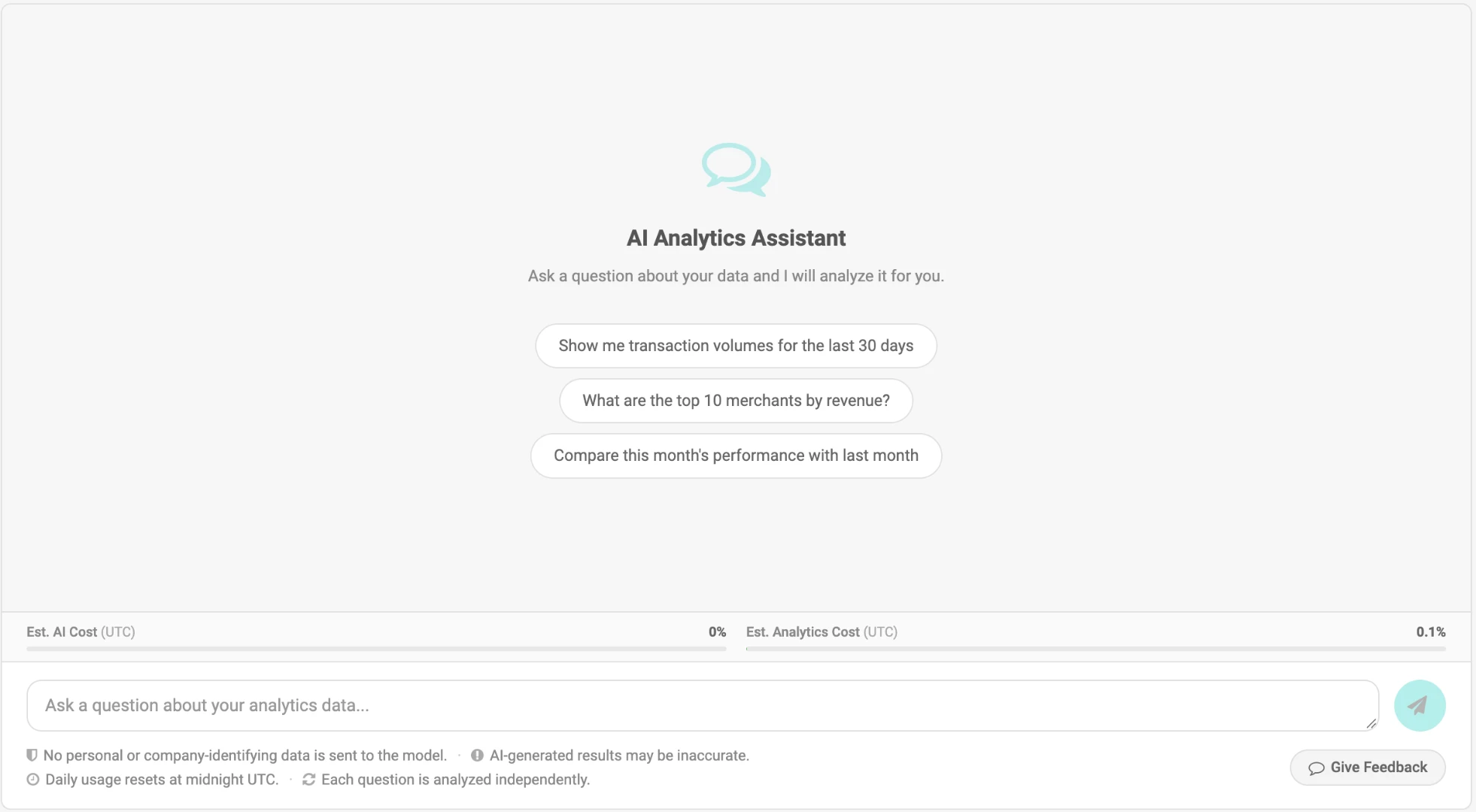
Figure 1. The AI Chat page with the example questions and the daily usage bars.
The page consists of:
-
Conversation area: Your previous questions and their answers. As long as there are none, a welcome message with three example questions is shown.
-
Usage bars: How much of the daily usage limits of the account is already used, see Usage Bars.
-
Question field: The field where you type your question.
-
Notes: Short reminders below the question field, for example that AI-generated results may be inaccurate and that the daily usage resets at midnight UTC, and the
Give Feedbacklink.
Type your question into the question field and press Enter or click the send button.
Press Shift+Enter to start a new line.
A question must contain at least 3 characters and can contain up to 2000 characters.
Clicking one of the example questions sends it right away.
You can ask one question at a time. While a question is being analyzed, the question field is disabled. If one of your analyses is still running, for example in another browser tab, a new question is refused with the message "You already have an analysis in progress. Please wait for it to finish and try again."
AI Chat works best with questions that name what to measure, for which period and how to group the result. For example:
-
How many successful transactions did we have per month in the last six months?
-
Which payment methods had the most failed charge attempts last week?
-
What was the total refunded amount per currency last month?
-
What is the success rate of charge attempts per payment method in the last 30 days?
Hints:
-
Name the period: If a question names no period, all available data is used.
-
Be specific: Broad questions such as "How is my business doing?" are answered with an overview based on reasonable assumptions. Specific questions lead to specific answers.
-
Mention test data explicitly: By default, only production payments are analyzed, see Test and Production Data.
AI Chat answers questions about the analytics data only. Other questions, for example about general knowledge or programming, are refused with the message "This question could not be answered. Please ask a question about your analytics data." Requests for advice, such as how to reduce chargebacks, usually receive a short text answer that explains which questions about the data can be answered instead.
AI Chat has no conversation memory. Each question is analyzed independently, and earlier questions and answers are not taken into account. A follow-up question must therefore contain all the details it needs.
Example:
-
After the question "What was the total transaction amount per currency last month?", the follow-up "And per payment method?" cannot be understood.
-
Ask "What was the total transaction amount per currency and payment method last month?" instead.
After a question has been sent, its answer card shows the progress of the analysis in these steps:
-
Understanding your question
-
Retrieving relevant data schemas
-
Planning analysis approach
-
Executing queries: one line per query with its description, its status, the number of rows and a
Show SQLtoggle -
Preparing your summary
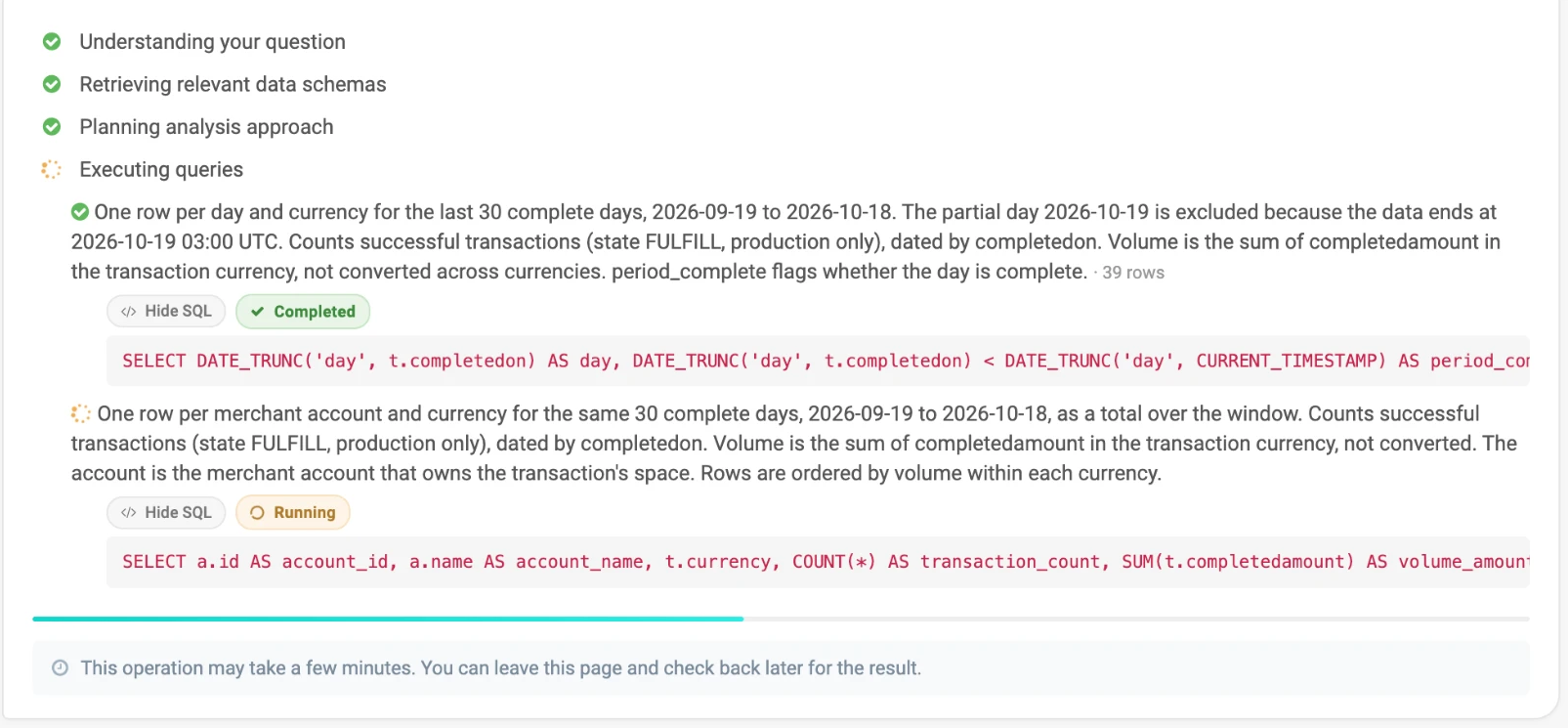
Figure 2. The progress of a question that is being analyzed.
An analysis can take a few minutes. You can leave the page and come back later, as the answer is kept in your conversation history. If the analysis is still running when you open the page again, its progress is shown again and the page continues to wait for the answer.
If the analysis takes longer than about ten minutes, the page stops waiting and shows the message "Your analysis is still processing. The result will appear in the conversation when ready." Open the page again later to see the answer.
When the page is opened, your most recent conversations in the account are loaded, with the newest one at the bottom.
To load more, click Load older conversations at the top of the conversation area.
The history is personal: each user only sees their own conversations in the account. Questions that failed during the analysis are shown with their error message. Questions refused before the analysis started, for example because a limit was reached, are not kept in the history.
|
Note
|
The answers are generated by AI. The rules described in this chapter are how AI Chat is designed to build its answers, they are not guaranteed for every answer. For important figures, check the queries behind the answer, see Technical Details and SQL. |
The answer is a short summary in plain business language. Where useful, it is formatted with headings, lists and tables. AI Chat does not draw charts or images.
AI Chat is designed to report the figures found in the data, not to give business advice or to guess causes that are not in the data. Amounts are shown with their currency, and large numbers with thousands separators.
The time of each question and answer is shown in the local time of your browser.
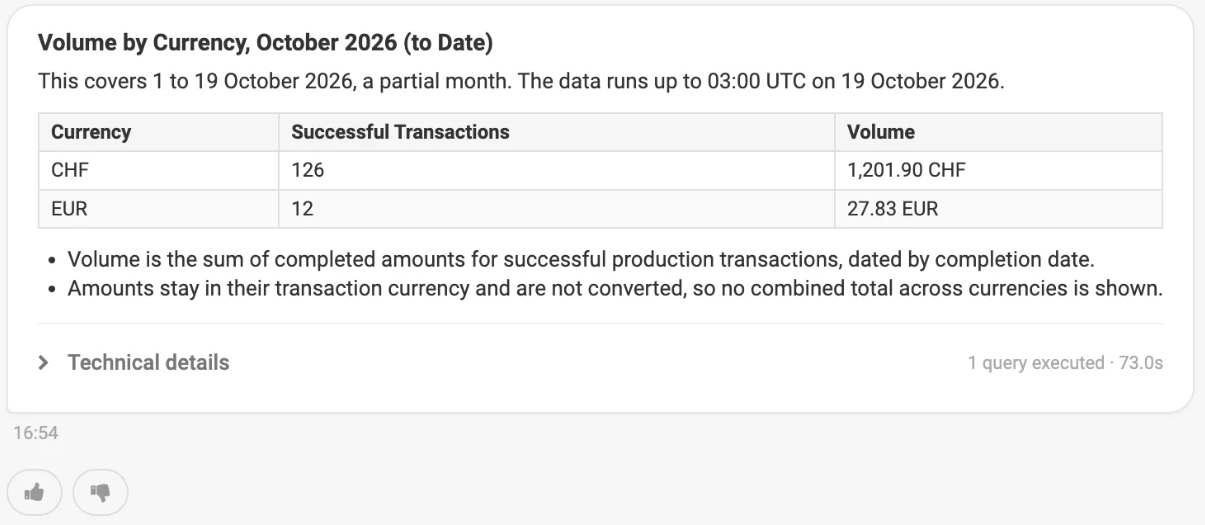
Figure 3. A completed answer.
The text of the answer contains no SQL. The queries behind an answer are listed in the Technical details section below it, which is collapsed by default. Its header shows the number of executed queries and the total processing time.
For each query, the section shows:
-
Description: What the query retrieves, usually including what one row of the result represents and which period is covered.
-
Status and rows: Whether the query was completed, failed or rejected, and how many rows it returned.
-
View query: Opens the query execution details in a new tab. There, the result file can be downloaded in
CSVformat like for any other analytics query. Each download of the result file is billed. -
SQL: Shows the SQL of the query.
-
Error: For a query that failed or was rejected, the reason why.
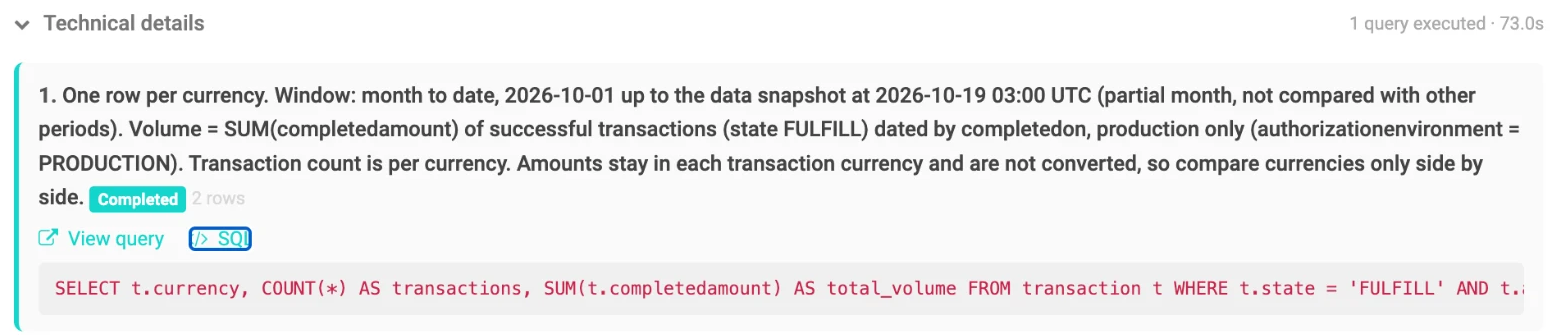
Figure 4. The technical details of an answer with the SQL of a query.
AI Chat has no export or download function of its own, and it cannot open a query in the query editor. To change a query or run it again, copy its SQL and paste it into the query editor under Account > Analytics > Submit Query.
The queries of AI Chat return a limited number of rows.
If a result is too long to be shown in full, the answer usually shows a selection, for example the 10 most recent entries, and states how many rows are not shown.
To get all rows of a query, click View query and download its result file.
If the query reached its row limit, copy the SQL into the query editor and raise its LIMIT clause.
-
All dates and times are in UTC, and weeks start on Monday.
-
AI Chat works with data that is updated once a day. The most recent data, for example the transactions of today, may not be included yet. The answer usually states up to which date and time (UTC) the data goes.
-
If a question names no period, all available data is used, and the answer usually refers to it as all time.
-
A period that is still in progress, such as the current month, is labeled as partial, for example as "to date". The answer usually leads with the last complete period and does not compare a partial period with a complete one. Comparisons are made between complete periods or between windows of the same length, for example the current month to date and the same days of the previous month.
-
If some details are recorded only for more recent periods, the answer usually points this out instead of reporting earlier periods as zero.
Amounts are kept per currency:
-
Amounts in different currencies are never added up to one total.
-
Instead of one overall leader, the leader within each currency is named.
-
Rankings of amounts, such as the top 10, are made within each currency.
Unless a question explicitly asks about test data, AI Chat analyzes production payments only. To analyze test payments, say so in the question, for example "How many test transactions did we have last week?".
-
A rate states whether it is based on the number or on the amount of transactions.
-
Success and failure rates per payment method or processor are calculated from charge attempts, and the answer says so.
-
Counts of failed transactions include only transactions with a failed charge attempt. Transactions that failed without any charge attempt, for example abandoned or expired checkouts, are not included, and the answer points this out.
-
Some queries failed: A notice above the answer explains that some queries could not be completed and that the answer is based on the other results. If some queries were not run because the daily analytics cost limit was reached, the notice states that instead. The failed queries and their errors are listed in the technical details. If the user lacks the required permissions, the account is not active or AI Chat is switched off, no answer is shown and the question fails with the matching message, see Access and Permissions.
-
Result too large: If the results are too large to be summarized, no summary is shown. Instead, the notice "The result set is too large to summarize automatically. Open the queries below to view the full results." is followed by a link to each query, where the full result can be viewed.
-
No matching data: A query that finds no data is listed with 0 rows, and the answer usually states that no records match its filters, without guessing a cause.
Questions can be asked in any language. The answer and the query descriptions are usually written in the language of the question. The texts of the page itself, such as the progress steps, notices and error messages, are shown in the language of your user interface.
Below each completed answer, rate the answer with the thumbs up or thumbs down button.
Optionally add a comment, then click Submit Feedback to save the rating.
The rating remains visible in the conversation history.
To give general feedback about AI Chat, click Give Feedback below the question field.
If you prefer to work with SQL, the query editor under Account > Analytics > Submit Query can turn a description of the data you need into an SQL query.
This function is called Prompt-to-SQL Translation.
It is separate from AI Chat and has its own feature and permission, see Access and Permissions.
If it is available, the editor toolbar shows a Generate SQL button.
-
Click
Generate SQL. -
Describe the data you want to retrieve, for example "Show me the total transaction amount per day for the last 7 days", and click
Generate SQL. -
Review the SQL shown under Generated SQL.
-
Click
Use this queryto replace the content of the editor with the generated SQL, or clickTry againto change the description. -
Click
Submitto execute the query as usual.
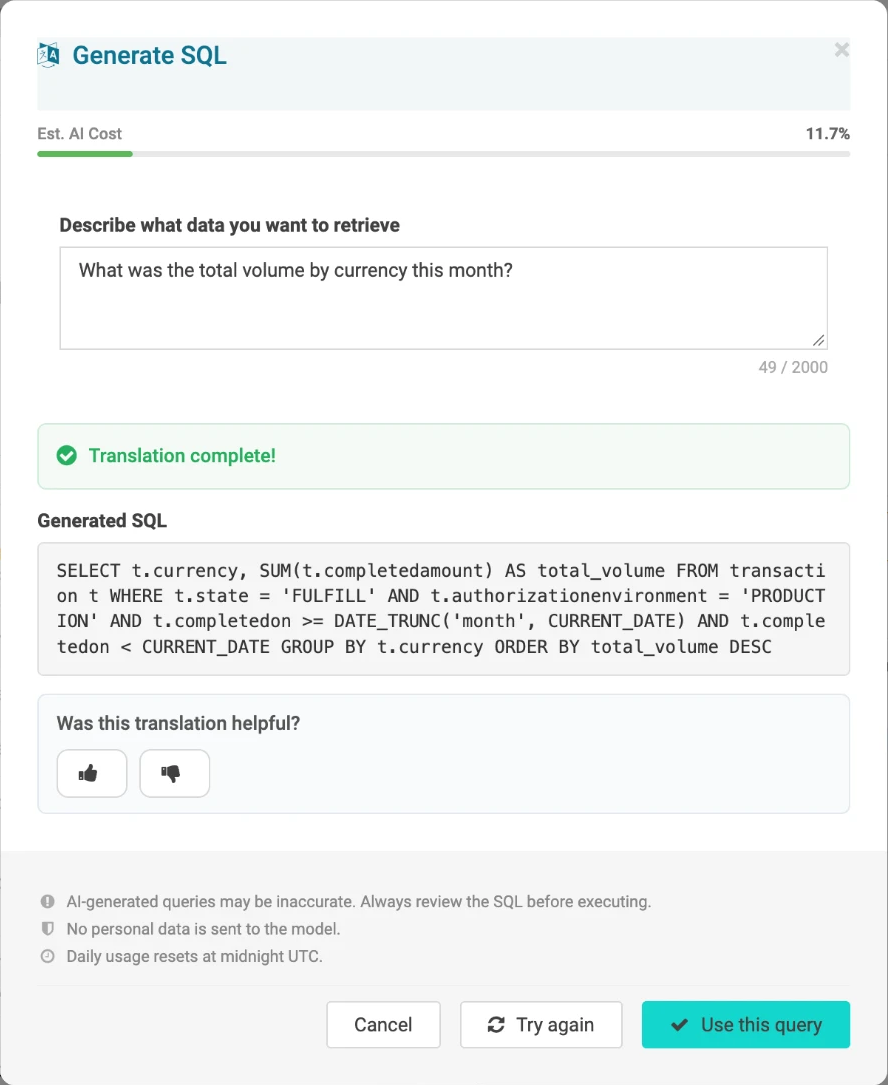
Figure 5. Generating an SQL query from a description in the query editor.
The generated SQL is a single query without a summary, and it is not executed until you submit it.
By default, it usually covers production payments only.
Always review the SQL before you submit it.
After a translation, you can rate it with the thumbs up or thumbs down button and click Submit.
The Generated Queries tab of the Assets Panel lists your recent generated queries. Click an entry to load its SQL into the editor.
Generating SQL counts against the same daily AI cost limit and the same per-minute limits as AI Chat, and the dialog shows the Est. AI Cost usage bar. It does not count against the daily analytics cost limit, because no query is executed until you submit it.
AI Chat is subject to limits that are configured for each account:
-
Daily estimated AI cost: The estimated cost of the AI processing of all questions and generated SQL queries of the account on the current day.
-
Daily estimated analytics cost: The estimated cost of the analytics queries executed by AI Chat in the account on the current day.
-
Requests per minute for the account: How many requests all users of the account together can send within a minute.
-
Requests per minute per user: How many requests a single user can send within a minute.
Questions to AI Chat and generated SQL queries count together against the per-minute limits. The daily limits apply to the UTC day and reset at midnight UTC.
The daily analytics cost limit is checked before queries are started. Queries that are already running when the limit is reached are not stopped, so the usage of a day can end up slightly above the limit.
To change the limits of your account, contact your Account Manager.
Above the question field, two bars show how much of the daily limits the account has used today:
-
Est. AI Cost (UTC)
-
Est. Analytics Cost (UTC)
A bar turns amber from 50% and red from 80%. The bars are updated after each answer. If a value cannot be determined, its bar is hidden.
When a limit is reached, the question is not analyzed and one of the following messages is shown:
| Message | Meaning |
|---|---|
Too many requests. Please wait a moment before trying again. |
You sent too many requests within a minute. Wait a moment and try again. |
Too many requests for this account. Please wait a moment. |
The users of the account sent too many requests within a minute. Wait a moment and try again. |
Daily est. AI cost limit reached (N% used). Please try again tomorrow. |
The daily estimated AI cost limit of the account is reached. N is the share of the limit already used. |
Daily est. analytics cost limit reached (N% used). Please try again tomorrow. |
The daily estimated analytics cost limit of the account is reached. N is the share of the limit already used. |
Daily usage limit reached for this account. Please try again tomorrow. |
A daily limit of the account is reached. |
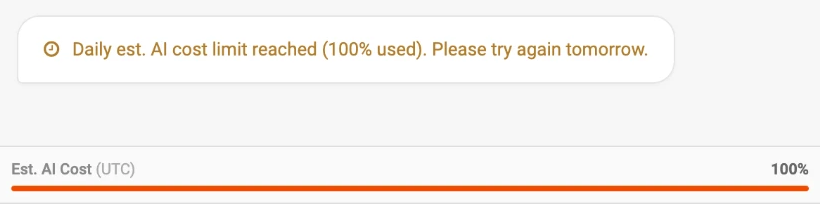
Figure 6. A message shown when a daily limit of the account is reached.
AI Chat is available in an account only if the Analytics feature and the AI Analytics Chat feature are active for the account. Otherwise, the menu entry is not shown and the page cannot be opened.
AI Chat can also be switched off for a single account. In that case, the page shows the message "AI Analytics Chat is not available for this account." and no questions can be asked. The same applies to an account that is not active, with the message "Your account is not active."
To use AI Chat, a user needs the following account permissions:
-
AI Analytics Chat: Allows the user to use AI Chat.
-
Analytics Query Execution: Allows the user to execute analytics queries.
-
Read (Account Admin analytics): Allows the user to access Analytics in the account.
If one of these permissions is missing, the menu entry is not shown, or the page shows the message "You are not allowed to use the AI Analytics Chat in this account." For more information about roles and permissions, see the Permission Concept.
Data access:
-
AI Chat uses the same data access as Analytics. It answers only from the tables the user may query, and its queries are executed with the permissions of the user in the account.
-
If the user cannot query any table, questions are refused with the message "The data required to answer this question is not accessible."
-
If a question needs data from a table the user cannot query, the related query is rejected. Its error in the technical details is "The data required to answer this question is not accessible.", and the answer is based on the other queries. If all queries are rejected, the question fails with that message.
Prompt-to-SQL Translation:
The Generate SQL button in the query editor requires the Prompt-to-SQL Translation feature for the account and the Prompt-to-SQL Translation permission for the user.
It does not require the AI Chat feature or permission.
When AI Chat is switched off for the account, generating SQL is not available either, and the dialog shows the message "Prompt-to-SQL Translation is not available for this account."
Need Access Changes?
If you require access to AI Chat or to additional tables, please consult your Account Manager.
-
AI can make mistakes: AI-generated results may be inaccurate. Check important figures, for example by reviewing the SQL and the result of the queries in the technical details.
-
Read-only: AI Chat only executes analytics queries. It cannot change any data or settings in the account.
-
One question at a time: Wait for the answer before asking the next question.
-
No conversation memory: Repeat all the details in a follow-up question.
-
Recent data: The most recent data may not be included yet. Check up to when the data goes in the answer.
-
Complete results: For complete lists or further processing, click
View queryin the technical details and download the result file. -
No charts: Answers contain text and tables only.
| Message | What to do |
|---|---|
Could not find relevant data sources for this question. Please try rephrasing. |
Rephrase the question with terms of the data, such as transactions, refunds or charge attempts. |
Unable to generate an analysis plan. Please try rephrasing your question. |
Make the question simpler or more specific. |
This question could not be turned into a valid query. Please try rephrasing your question. |
Make the question simpler or more specific. |
The queries could not be completed. Please try rephrasing your question. |
Make the question simpler or more specific, for example by asking about a shorter period. |
The data required to answer this question is not accessible. |
The user cannot query the data needed for the question, see Access and Permissions. |
The analysis timed out. Please try again. |
Try again, or narrow the question, for example to a shorter period. |
The analysis service is currently unavailable. Please try again later. |
Try again later. |